
Joint account setup examples
In this guide, we take a look at some examples of managing joint accounts in PocketSmith and the setup options available. Hopefully, these examples may be similar to how you are wanting to manage your own joint accounts or give you a starting idea to work from. ✨
Throughout the guide, we refer to 'your partner'; just replace this with the joint account holder noun of your choice!
For an more about tracking joint accounts, please see: Managing joint accounts in PocketSmith.
In this user guide
Background
For those who are wanting to use PocketSmith to track 'who-owns-what' or 'who-owes-who' with your other joint account holder, take a look at our examples so far and see if one resonates with you. We definitely appreciate we've just scratched the surface here.
If your approach doesn't need to track your share of the accounts or expenses with your other joint account holder, then we recommend diving into our other Learn Center Guides. 💦
Example 1 - Managing alongside your personal accounts
Here's an example of how one of our team members handles their joint account in their own PocketSmith account.
Their PocketSmith account has the joint account added along with their personal accounts, but none of their partner's personal accounts. Will this be the same setup for you?
They have a joint account with their partner used to handle all of their household bills - let's call this 'House Account'. They basically pay all of the household/joint bills out of this account. Some examples of this are:
- Mortgage 🏡
- Electricity ⚡
- Groceries 🛒
Each person (our team member and their partner) pays a set amount into this joint account each payday to cover all of these bills.
Instead of trying to 'split' bill payments in half, which would be a manual process, they simply treat their partner's contribution to the joint account as an income source, similar to a paycheck or wage. 💰
As far as PocketSmith is concerned, they pay the whole bill amount (i.e., the entire mortgage payment or entire 'groceries' payment), but because they are treating the partner's payments as another source of income, this extra income offsets the extra expenses.
Essentially, they appear to be paying more than they actually are (100% of the bill), but they also appear to be 'earning' more than they actually are (the partners' payments), so it works itself out in the end.
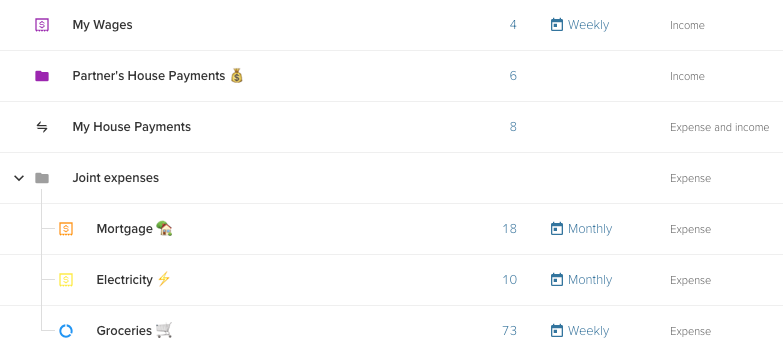
When they contribute money to the shared account, they treat this as a 'transfer' - assigned to a transfer category called 'My House Payments'. We've got all the details on creating transfer categories here Creating a transfer category.
When their partner makes a payment to the joint account, they assign this to an income category called 'Partner's House Payments'.
On the Categories page (Manage > Categories), these categories would look like this:
Example 2 - Managing alongside you and your partner's personal accounts
Here's an example of how another one of our team members handles their joint account in their own PocketSmith account. In this example, the PocketSmith account has the joint account added along with their personal accounts and their partner's personal accounts.
Each person (our team member and their partner) pays a set amount into this joint account each payday to cover all of these bills. They are happy to share these bills fully.
From time to time, each person makes personal purchases using funds from the joint account and later repays them. When this happens, the team member makes use of labels and saved searches in Transactions widgets to track how much they each need to repay into the shared account.
Tracking individual spending owed to a joint account
- Create a label for each partner, such as
ainsley-to-repayandriley-to-repay. See Adding labels to transactions. -
As expenses are incurred on behalf of an individual using the joint account, make sure to add the relevant label to these transactions. For example, Riley purchases shoes from Sports Co for $51 using the joint account, and the label
riley-to-repayis added to the transaction.

Ensure the same label is added when the individual makes a repayment. When Riley repays the joint account for the shoes the
riley-to-repaylabel is added to this transaction too.

- Next, create a saved search on the Transactions page for each label. We recommend saving the search with the same name as the label so that it's easy to find later on.
-
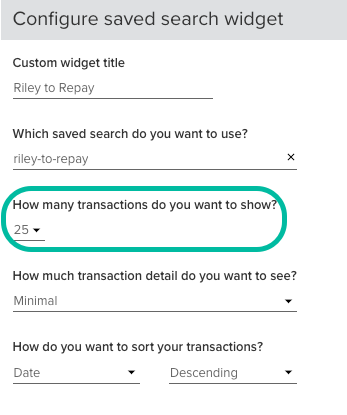
Head the new Dashboard and set up two separate Saved search widgets. Set the number of transactions to be 25.
-
The widgets can be monitored side-by-side on the customizable Dashboard to keep track of how each partner is tracking what they need to repay the joint accounts.
The sum total at the bottom is adding the most recent 25 transactions for each Saved Search. Riley is up-to-date, shown by the Sum total of $0.00, having repaid all personal expenditures. Whereas Ainsley still owes $69.20.
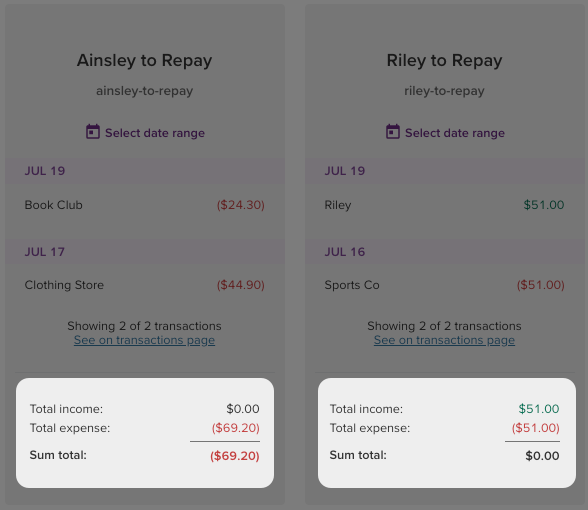
Note there is a link on the widget to 'See on transactions page' that opens the saved search results; this can be useful once there are a large number of transactions.
Tip
If you are spending for both personal and combined purposes at the same merchant (e.g., at the same restaurant) and want to categorize these separately, you can use Filters ✨
Filters are more powerful than Category Rules and allow you to set multiple parameters for categorizing.
This way, you could set the merchant keyword to be the same, e.g. the restaurant name, but then set the account to be either only personal spending or combined spending accounts and categorize these correctly to either Dining out - Personal, or Dining out - Combined.
Example 3 - Managing joint spending without a joint account
In this example, we consider the related situation, if you want to share the expenses as a flat or as a couple but do not have a joint bank account, and how PocketSmith can still help you keep track of your joint expenses using categories and refund behavior.
For example, you and your partner each pay for joint expenses and want to keep track of what you have each paid for so that at the end of each month, you can square things up. If this is how you do things, read on!
Tracking what you pay for
Firstly, we recommend keeping all of your existing categories and then adding a My Shared Expenses category.

At the weekend, you head to the supermarket and fill the trolley with groceries 🛒 for you and your partner. However, in your PocketSmith account, you want to continue to monitor your own share of the groceries but also track what you have spent on behalf of your partner. You can split the transactions in the web app and assign your half to Groceries and your partner's half to the Shared category.
Note
- Splitting transactions is a manual process that will need to be carried out on each relevant transaction.
Later, when your partner repays you, just assign the repayments to the My Shared Expenses category. You can then make use of the refund behaviour within PocketSmith.
The best way to handle reimbursement or refund transactions is by changing the Category Type of the Category you're assigning the transactions to, to: No, this is an expense category (any income is a refund).
It is important that the income repayment transactions that you receive in your account from your partner are assigned to the same category. This way, the initial payments you make will show as an expense, but when your partner pays you back, it will show as a refund, effectively cancelling out the expense when all is paid back in full. 🎉
Tracking what your partner pays for
Regarding tracking the expenses your partner has paid, this is a little trickier. But there is a way to follow a similar solution to the one above.
- You will need a way to track the amounts you owe them, and the best way to do so is to create an offline account.
- Next, for any transaction your partner makes, you can manually enter an income transaction for the amount you will need to repay into the offline account created above. Make sure to categorize these to their own category e.g., My Partner's Shared Expenses.
-
Then assign any bulk payment transactions, which will be expense transactions, you make to your partner to the My Partner's Shared Expenses. Make sure to set this category to: No, this is an expense category (any income is a refund).
Following this method, your My Partner's Shared Expenses category should net to zero once you have repaid them in full!
Different setup? We'd love to hear about it
We'd love to hear more examples of managing joint accounts. If you have a joint account set up that isn't covered by the above and are keen to share your method, please reach out to us!