
Using PocketSmith without feeds or bank files
Some people like to use PocketSmith without connecting feeds or importing bank files, instead adding their own transactions manually or only using budgets on the calendar.
This user guide explains how to set up a PocketSmith account without adding feeds or bank files and manually adding transactions. If you want to learn how to only use the PocketSmith Calendar and budgets, and not add manual transactions either, check out this user guide.
In this user guide
Create an account without feeds or bank files (brand new PocketSmith account)
When creating a new PocketSmith account, you are asked to either Connect your account, Upload your data (using bank files), or Guided mode. However, if you'd prefer to create an account where you either manually add your transactions or create an account that doesn't have transactions at all, use the steps below.
-
Click this link to access advanced mode: https://my.pocketsmith.com/welcome?mode=advanced
-
You'll be taken to the Account Summary page.
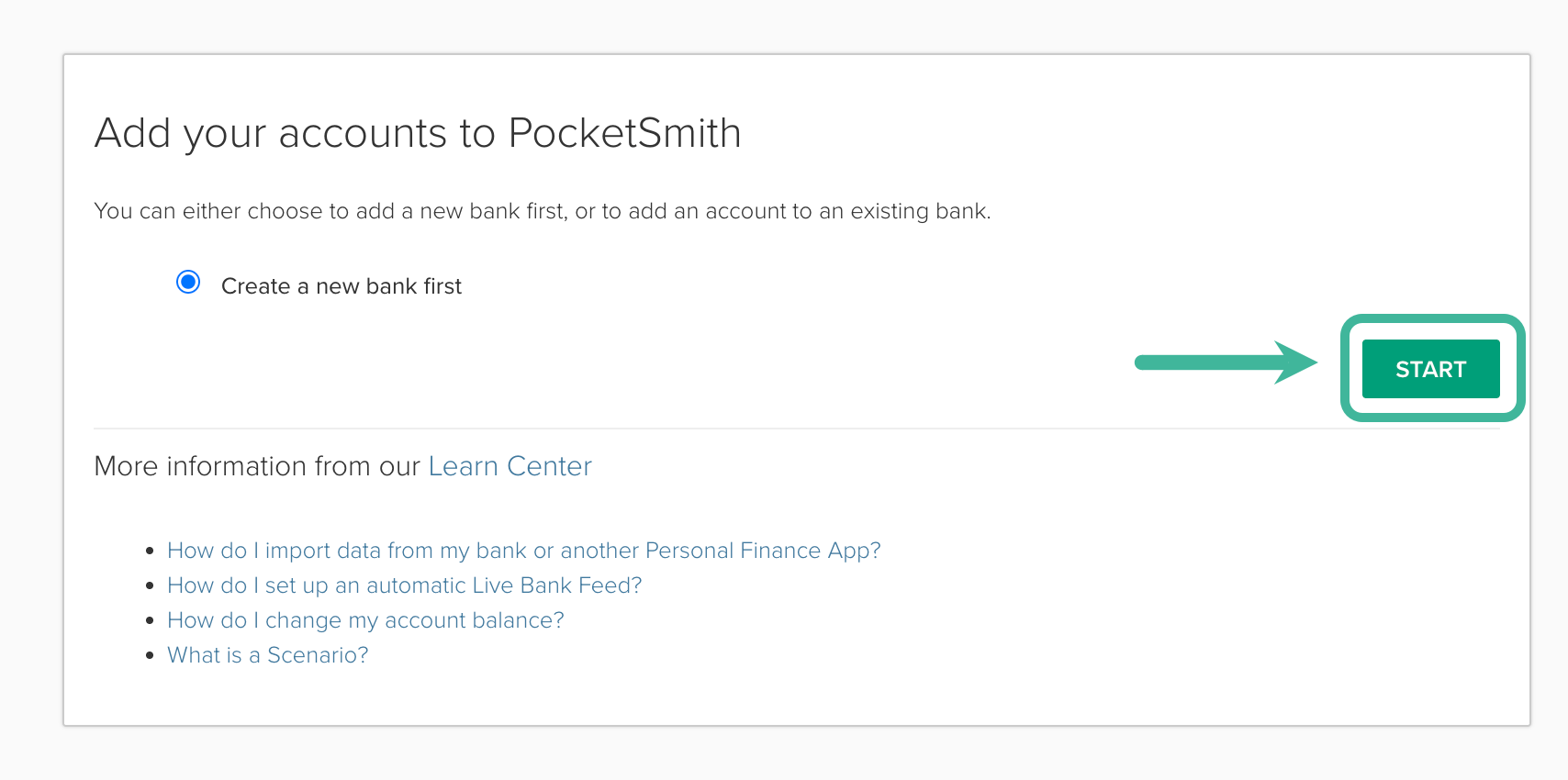
Ensure Create a new bank first is ticked, then click START
-
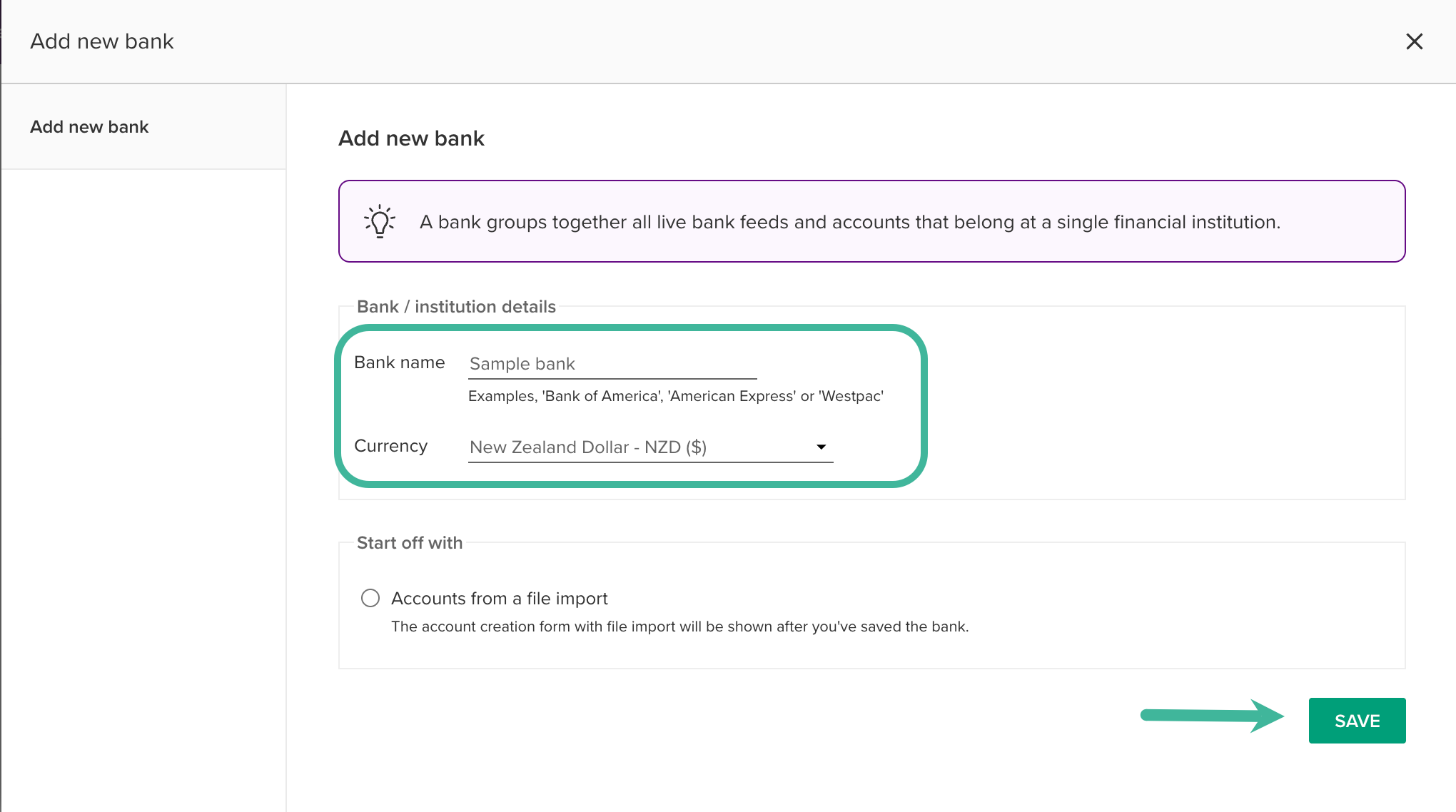
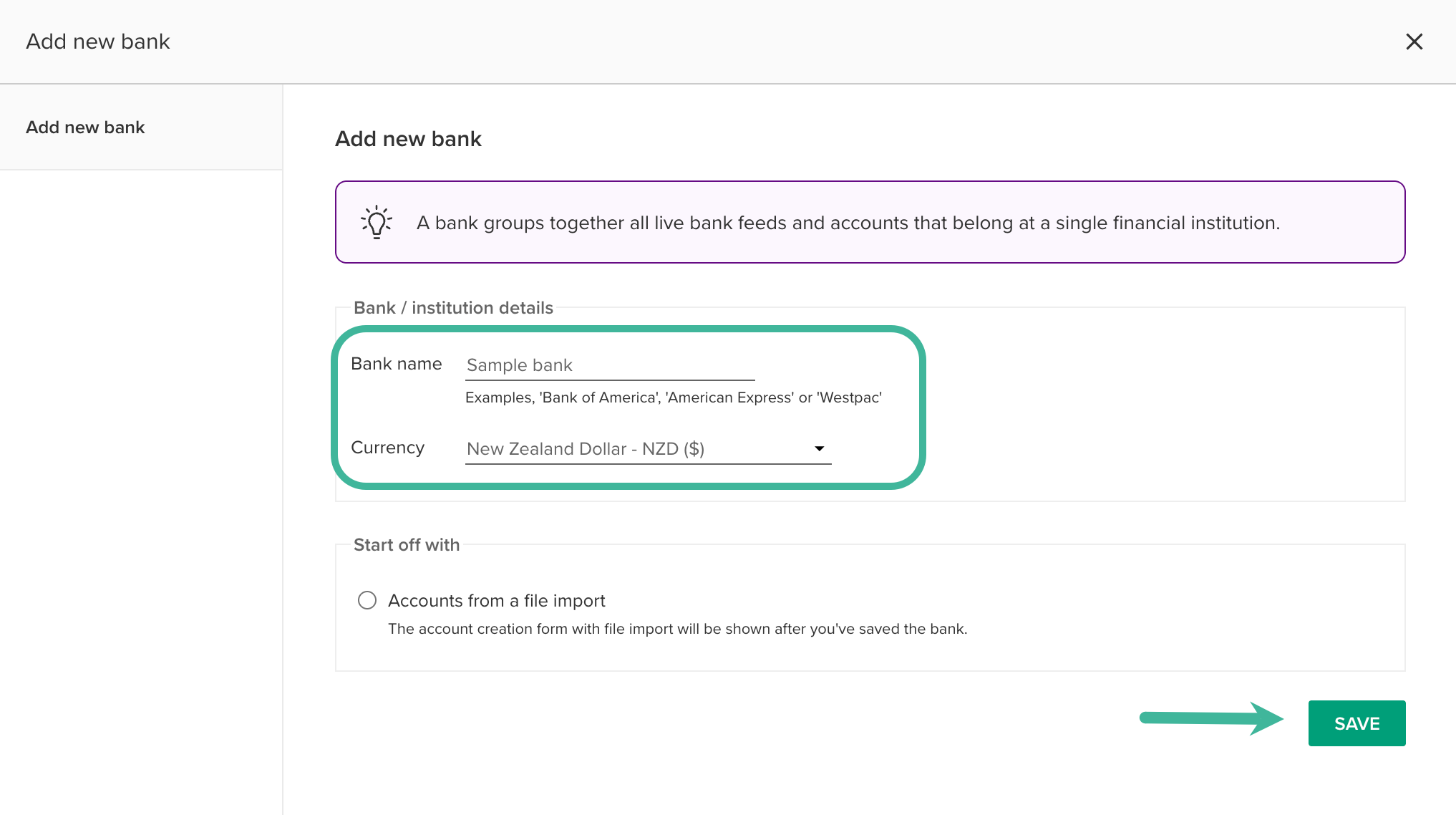
Enter the name for the bank and adjust the currency if needed. Then, click SAVE
-
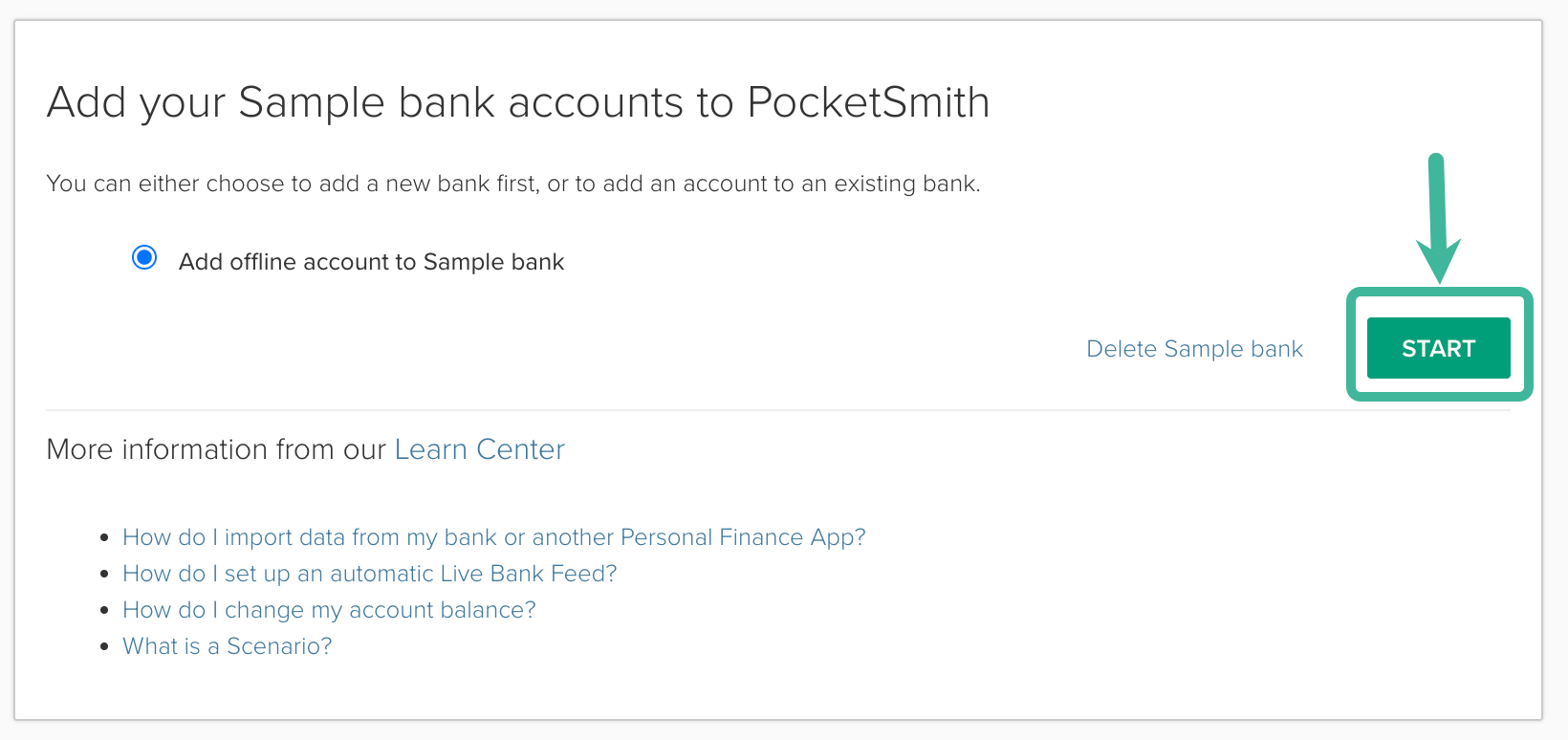
Now that your Bank is created, click START to add an offline account.
-
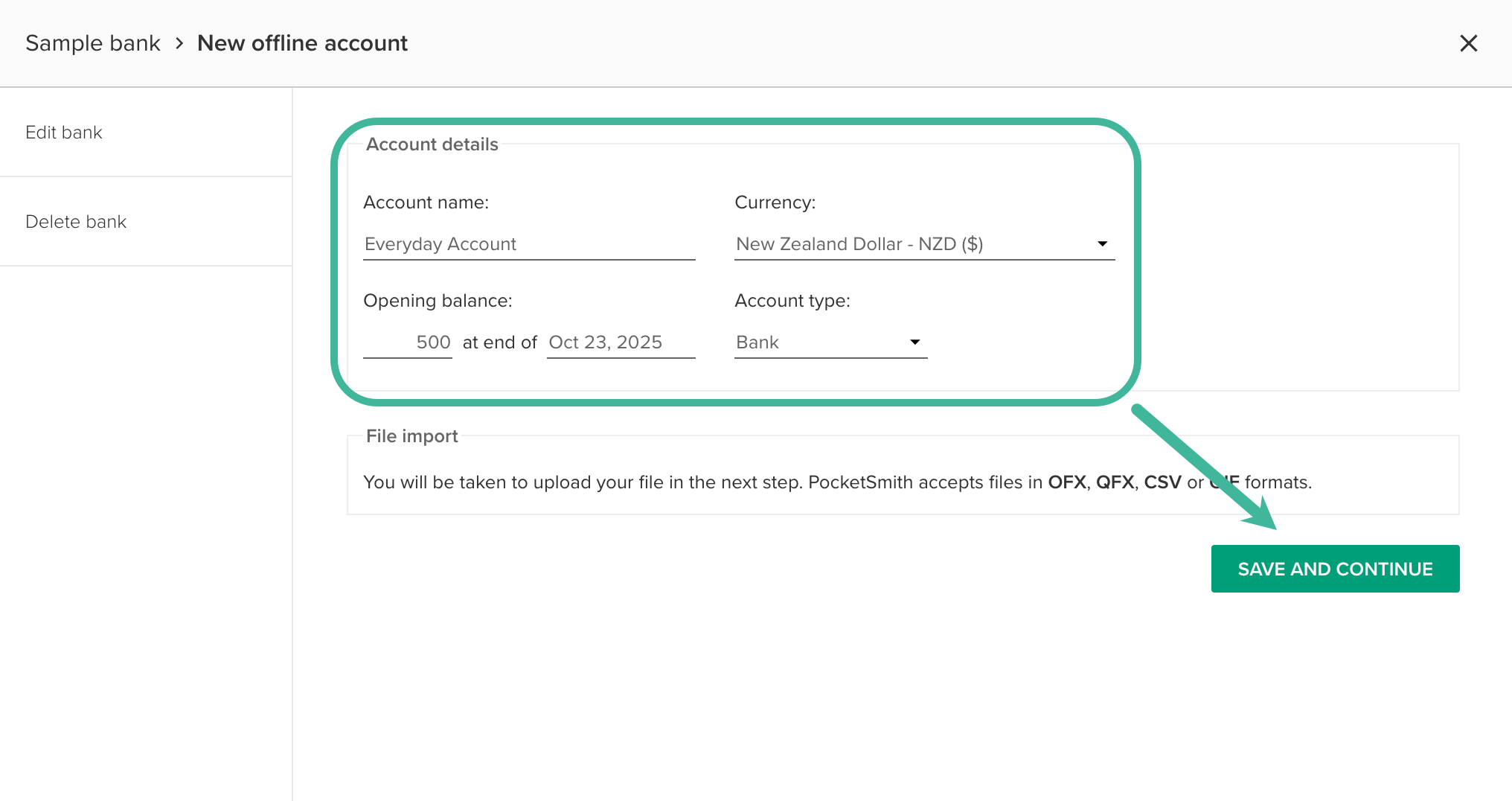
Enter your new account's details, including the Account name, Currency, Opening balance, and Account type. Then click SAVE AND CONTINUE
-
Your account is now created! As you won't be adding a bank file, click X to exit the modal.
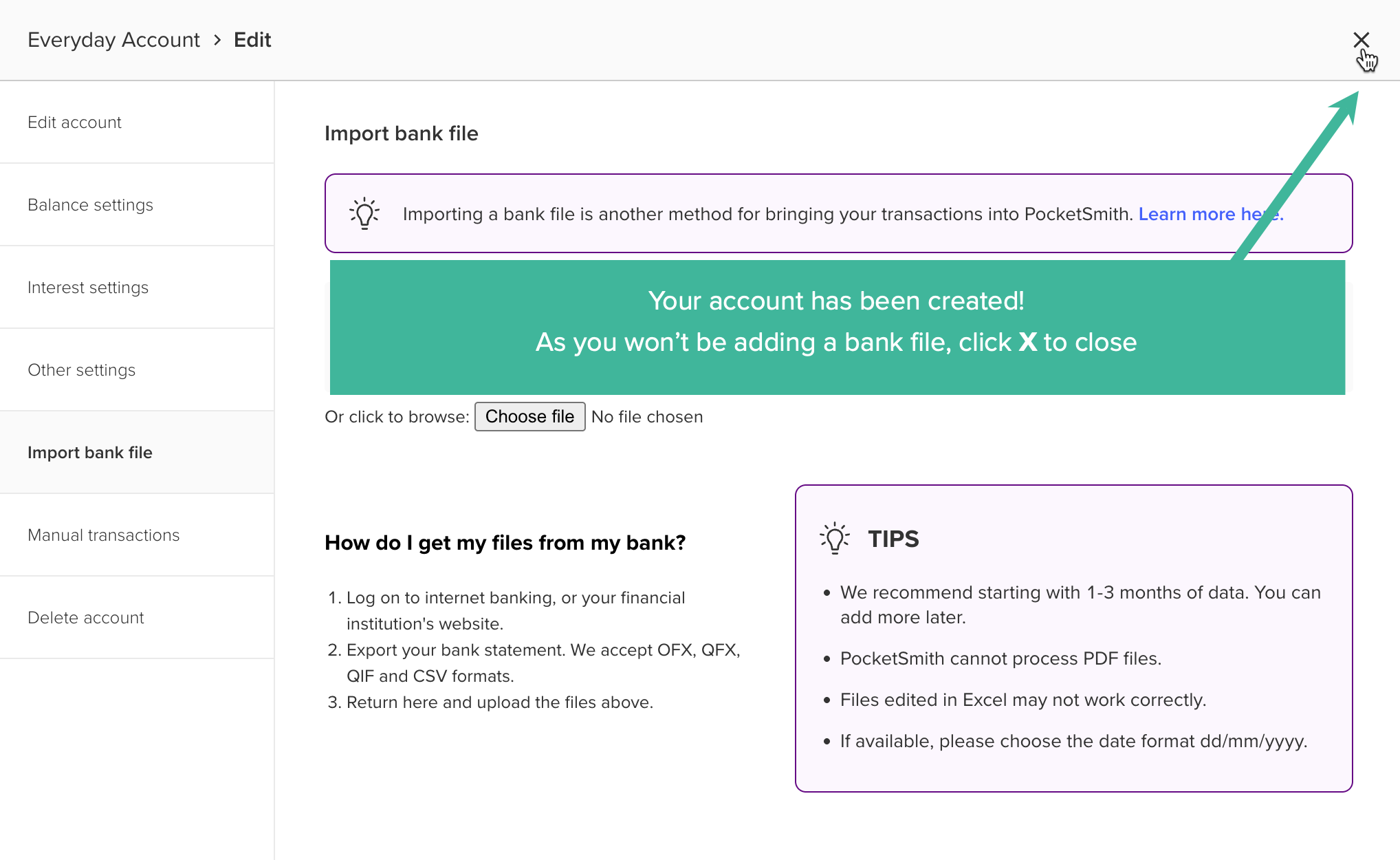
- Your Account Summary page will reload and display your new offline account! You can now go ahead and add your transactions manually or use the Calendar with a scenario-only account.
Add a bank account without feeds or bank files, to an existing bank within your PocketSmith account
If you already have your PocketSmith account set up but would like to add a manual account to an existing bank, follow the steps below.
- Head to the Account Summary
-
Select the existing bank you'd like to add the new account to from the left side panel.

-
Then click + New offline account in the toolbar and select From a file import
-
Enter your new account's details, including the Account name, Currency, Opening balance, and Account type. Then click SAVE AND CONTINUE
-
Your account is now created! As you won't be adding a bank file, click X to exit the modal.
- Your Account Summary page will reload and display your new offline account! You can now go ahead and add your transactions manually or use the Calendar with a scenario-only account
Add a bank account without feeds or bank files, to a new bank within your PocketSmith account
If you already have your PocketSmith account set up, but you'd like to add a manual account to a new bank, follow the steps below.
-
Head to the Account Summary page, then select + New Bank from the left side panel

-
In the modal that appears, enter the new bank's name and adjust the currency if needed. Select Accounts from a file import and then click SAVE
-
Now that your new bank is created, click START to add an account
-
Add your new account details, such as the Account name, the Currency, the Opening balance information, and the Account type, then click Save and continue
-
Your account is now created! As you won't be adding a bank file, click X to exit the modal.
- Your Account Summary page will reload and display your new offline account! You can now go ahead and add your transactions manually or use the Calendar with a scenario-only account.
Manually add transactions to an account
Alert
If you use feeds or bank files to import your transactions for an account, we don't recommend adding transactions manually, as this may lead to duplicate data.
If you've successfully created an empty account from the Checklist, it's likely you may not have access to the Transactions page in your menu bar yet. Follow the steps below to add transactions.
Note
If you can access the Transactions page in your menu bar, begin at step three.
-
Select MANAGE ACCOUNT on the account you would like to add transactions to

-
Select View transactions

-
Now you should find yourself on the transactions page, where you can navigate to PocketSmith's manual input feature
Click Add in the top toolbar, hover to Manual input, and then click on your account, which will display in your menu

-
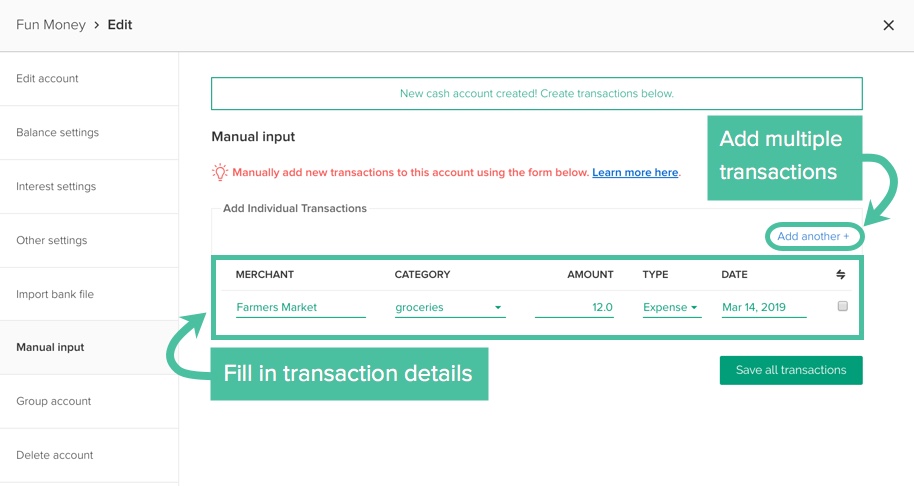
Begin manually entering your transactions. You can add one at a time or add multiple transactions by clicking Add another.
Once you're happy, click Save all transactions
Using budgets on the Calendar without adding transactions
The forecast calendar is a quick way to calculate future finances if you already have a good handle on your earning and spending habits. Easily add income and expense budgets on the calendar for set periods and see future outcomes of your set budgets by checking the account balance displayed on any single day in the future.
Learn more about this here: Using Budgets on the Calendar for scenario-only accounts