
Importing accounts and transactions from Banktivity
PocketSmith has a range of tools that make moving from other Personal Finance Management apps a breeze. Use the custom Banktivity importer to upload your transactional data directly into PocketSmith, meaning all your accounts and categorisation will be imported ✨
Important
When importing data from another app, we recommend having a fresh PocketSmith account to avoid creating duplicate accounts.
If you already have data in your account, it's best to reset your PocketSmith before attempting to import data from your previous Personal finance management app.
For details on restarting your account, see: Options for resetting your PocketSmith account
In this user guide
Exporting your accounts and transactions from Banktivity
To start, you will need to export your transactions from Banktivity so that you can import them into PocketSmith.
- Open the Banktivity application
- Head to this page for directions to download your data.
- Follow the "Export to QIF" instructions, choosing to export all accounts.
- Locate the QIF file, ready to upload to PocketSmith
Importing your Banktivity file into your PocketSmith account
Once you've created your account at PocketSmith, you're all set to get your Banktivity data imported. The Banktivity import tool allows you to upload your QIF file to PocketSmith, recreating all your categories, transactions, accounts, and financial institutions.
Important
When importing data from another app, we recommend having a fresh PocketSmith account to avoid creating duplicate accounts.
If you already have data in your account, it's best to reset your PocketSmith before attempting to import data from your previous Personal finance management app.
For details on restarting your account, see: Options for resetting your PocketSmith account
-
From the Welcome page, Select Start here from the Upload your data option

-
Then select MOVE FROM ANOTHER APP

-
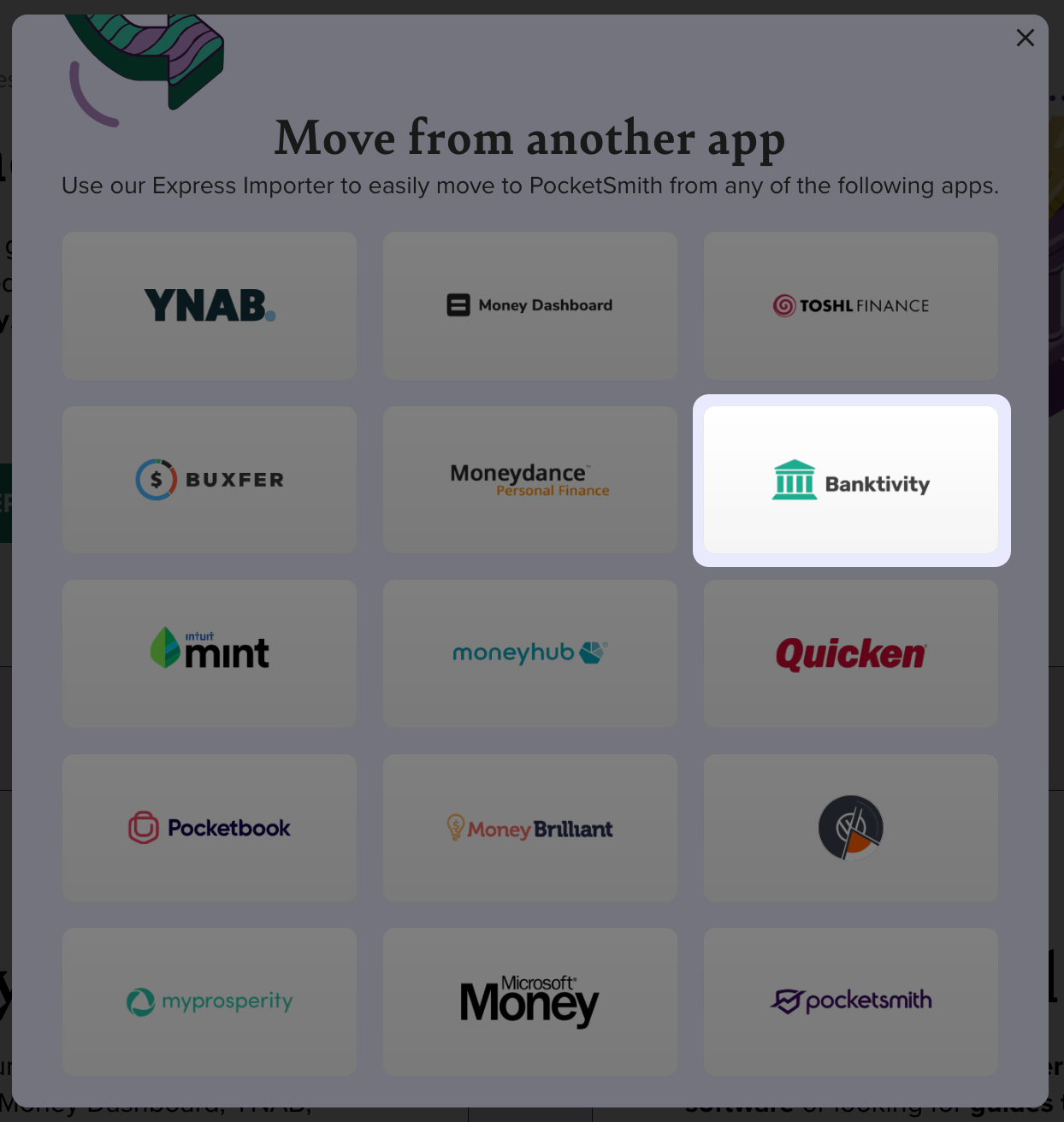
Select Banktivity from the selection of custom import tools
-
Drag-and-drop your Banktivity QIF file directly onto the page, or click Choose file to select the file from your computer.
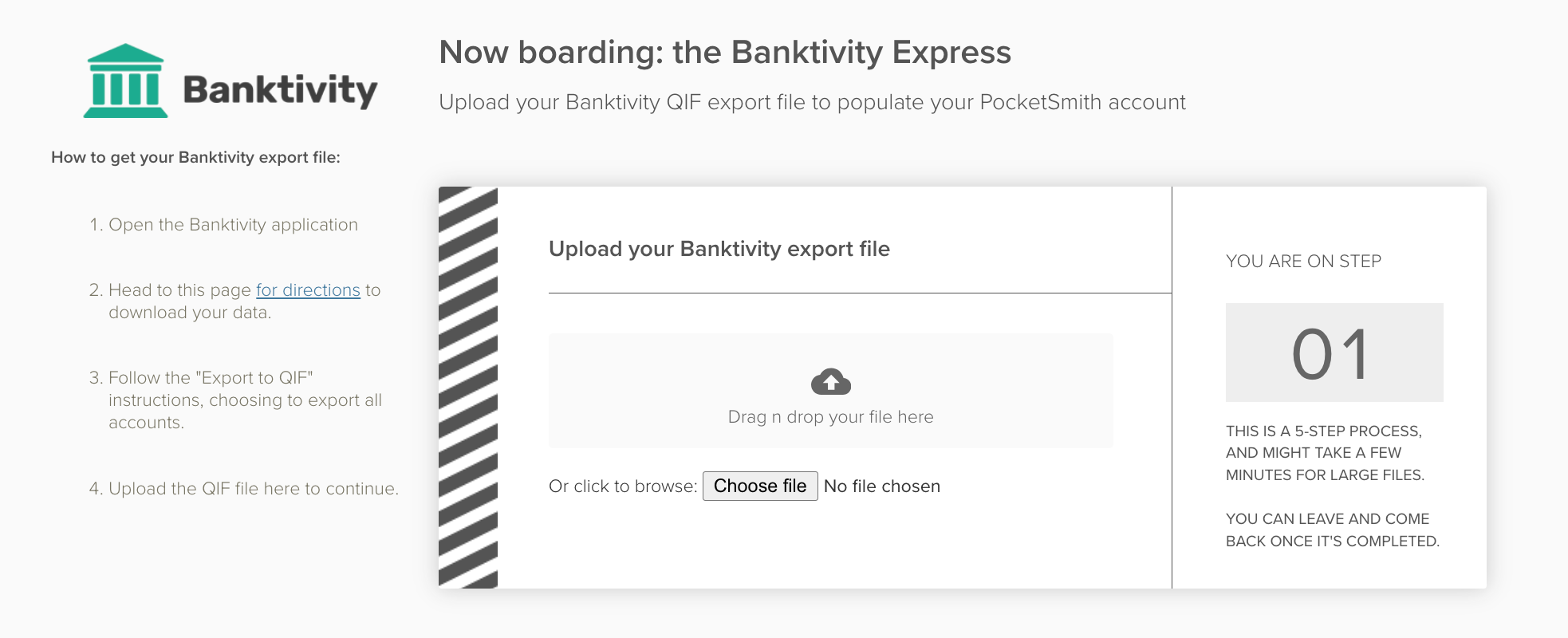
- Follow the steps outlined by the custom import tool to complete uploading your data to PocketSmith 🙌


Next steps
Once your historic data is imported into PocketSmith, if you're on a paid plan, you can add feeds and link these to your existing accounts to automatically import your latest transactions⚡️. Check out the following guides:
If any of your accounts do not have a feed available, or you’re using our free plan, you can use bank files to keep your latest transaction data up to date ⬆️: