
Bill reminders - paid bill showing as overdue
You might notice a bill in your bill reminder widget or email showing as overdue despite knowing it has been paid. This guide will help you fix this and understand why it might occur.
In this article
Why is a bill overdue?
Bill budgets expect a payment on or after the day that the budget repeats, but before the date of the following bill.
For example, a monthly bill on the 15th of the month will show us as overdue if there is no transaction between the 15th and the 14th of the following month.
The most common reason a paid bill shows as overdue is that it was paid early before the budgeted date.

Easily fix a bill paid early
This guide shows how to use a tool to mark a bill as paid when it was paid early: Fix a bill showing as overdue when it was paid early.
Troubleshooting
A good way to troubleshoot this is to use the Budget page.
Untick the Use total budget summary date range for budget amount analysis option above your individual budget bars:
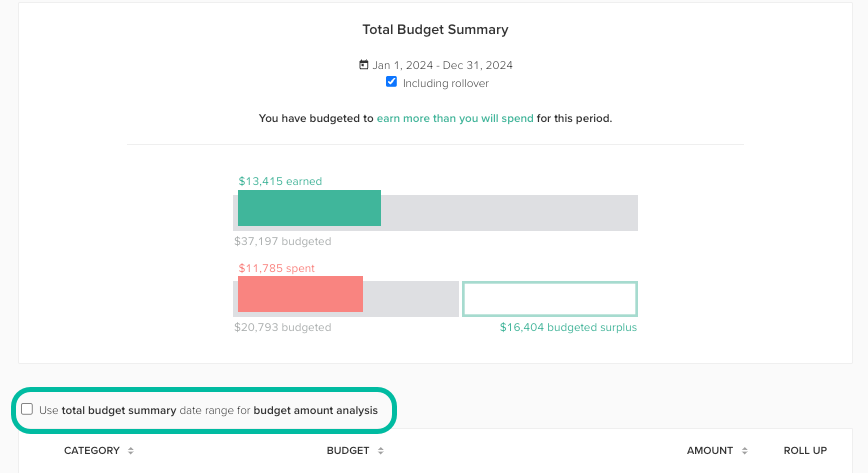
From here, you can look at the individual budget that is showing as 'overdue'. You'll likely see that the budget shows '$0 spent' - this is why the bill is 'overdue' in the Bill reminder widget.
If you pay a bill early (before the budget for that bill repeats), there are two ways to fix this so that the Bill reminder shows it as paid. Check these out below!
Adjusting your budget series repeat date
If your budget is set up to repeat after you generally pay your bill, then the best solution would be to adjust the date your budget repeats so that the budget repeats earlier and before your payments.
For example, if you always pay your bill on the 15th but the budget repeat date is the 20th, then it's best to edit the budget and make it repeat earlier on the 15th.
For information on changing repeating budgets you can check out this guide: Repeating budgets and how to delete or make changes to them.
Adjusting the one-off budget repeat event
If you pay a bill early as a one-off, then you can adjust only the individual budget event from the Calendar page.
Move the upcoming budget event back to the date that you actually paid the bill so that the transaction is included in the current budget period.
For the details on how to do this, follow this guide: Moving a budget on the Calendar.