
Options for hiding or restoring categories
You might want to hide particular categories in your reporting, such as the Income Expense report or the Cashflows statement, so you can fine-tune how you analyse your earning and spending.
In this user guide
Reasons to hide a category
Hiding particular categories allows you to take a deeper look at your earning and spending within particular areas.
For example:
-
🎉 🍻 👞
You could hide all categories on the Income & Expense report that relate to your fixed costs, so you can understand the total expenses for your flexible spending.
-
💰 📃 📊
You can create a report on a particular set of your income and expense categories to share with your accountant.
Hiding or restoring a category on the Income & Expense report
Hiding a category
- Head to the Income & Expense report ( Reports > Income & Expense)
-
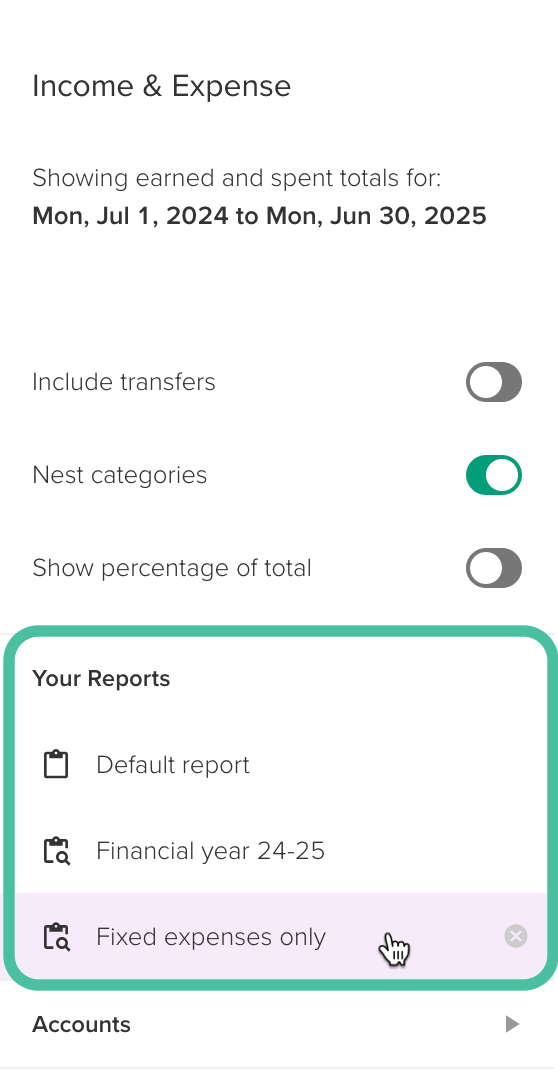
If you have an existing saved report you wish to update, select this from the side menu under Your Reports:
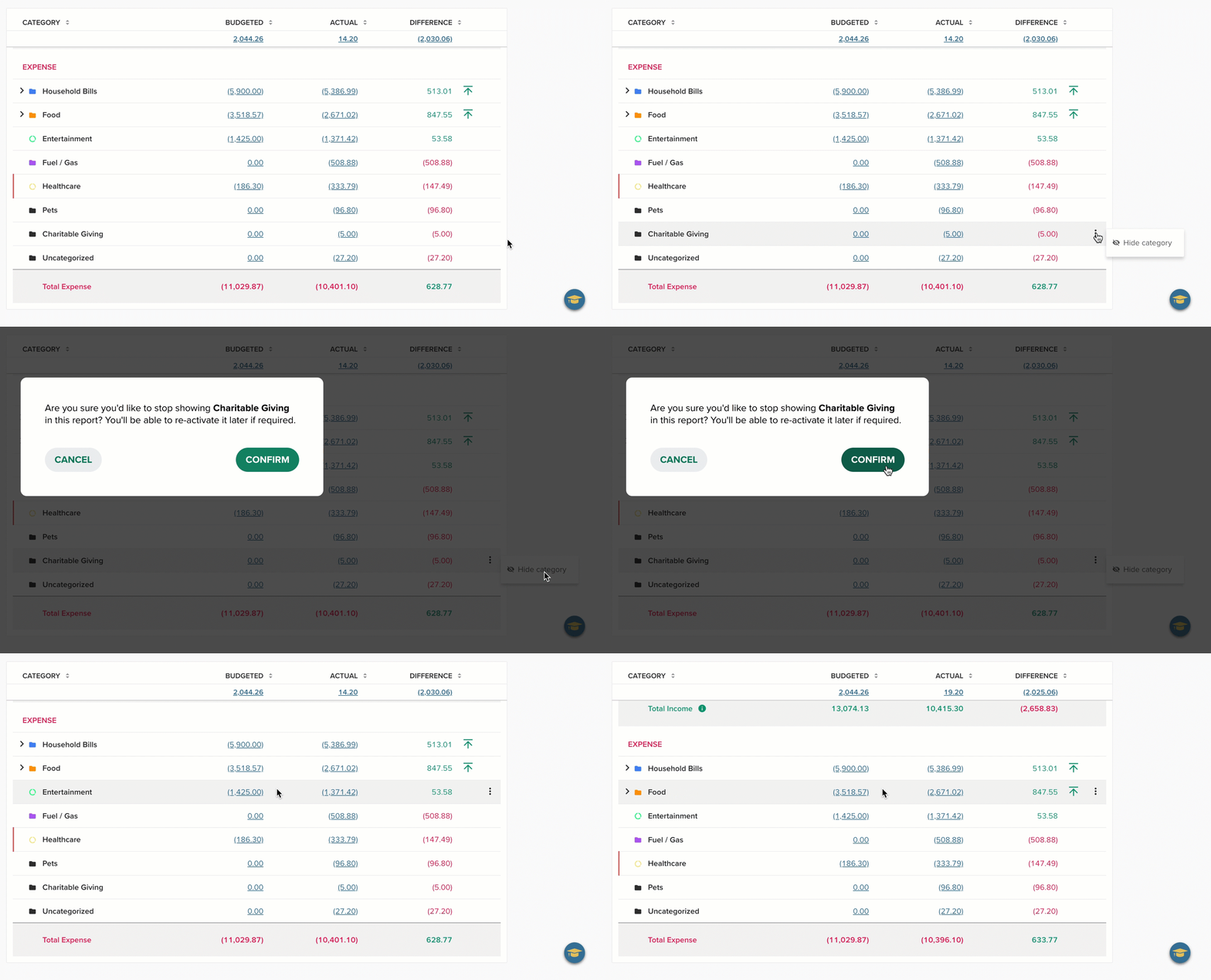
- Hover your mouse over the end of the category row you'd like to hide, click the three-dot menu and then the crossed eye icon
-
Then CONFIRM
-
Click SAVE CHANGES to update the selected report with the new category selection, or choose to +Add to your reports to save a new report with this category selection.
For more on Saved reports, see: Saved Income & Expense reports

Restoring a category
To restore a hidden category on a saved Income & Expense report
-
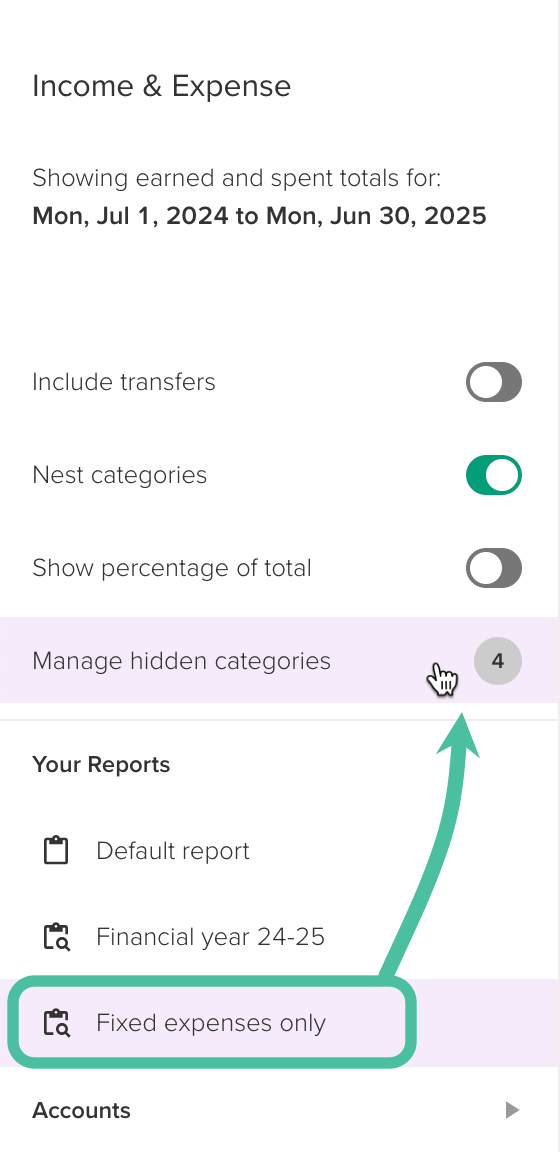
Choose the report you'd like to restore the category for, then click Manage hidden categories:
-
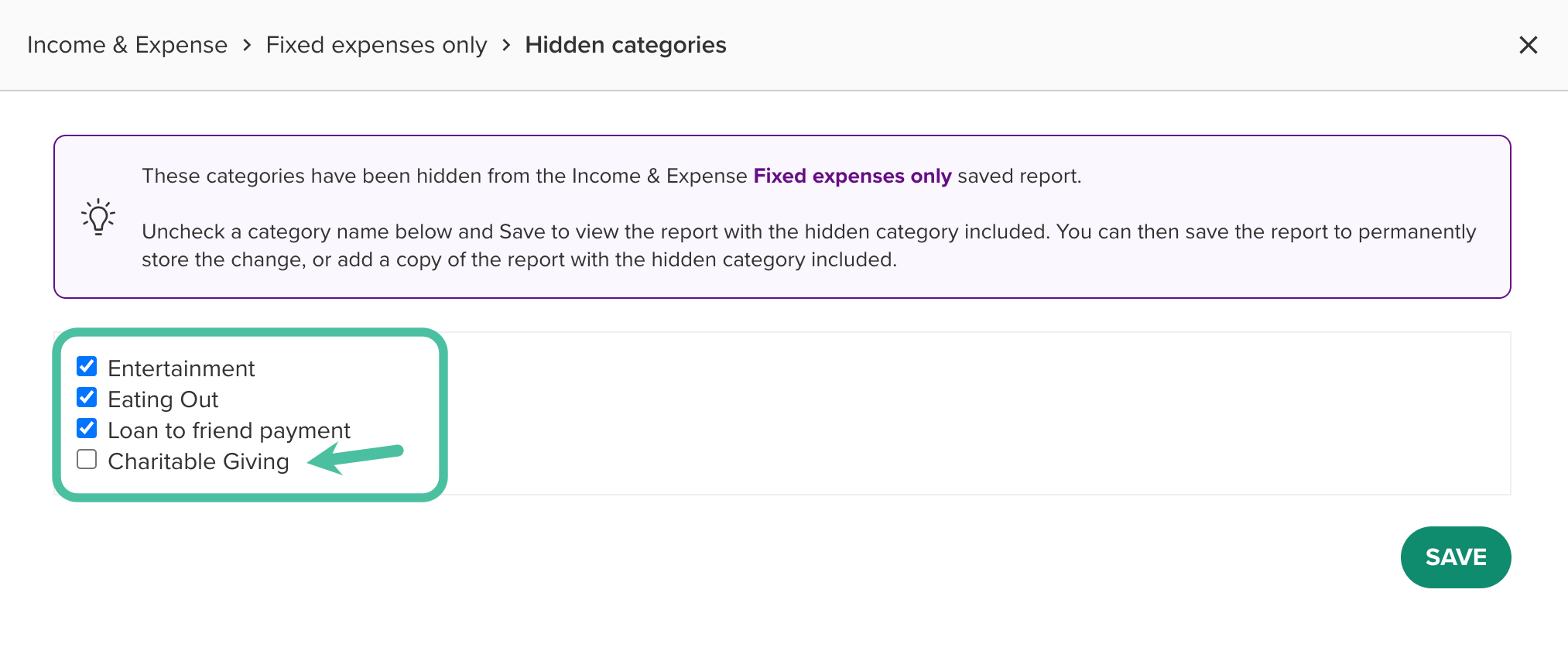
Untick any categories you'd like to restore, then click SAVE
-
Click SAVE CHANGES to update the selected report with the new category selection, or choose to +Add to your reports to save a new report with this category selection.
For more on Saved reports, see: Saved Income & Expense reports
Hiding or restoring a category on the Cashflows statement
Hiding a category
- Head to the Cashflows statement ( Reports > Cashflows)
-
Hover your mouse over the category you'd like to hide and click on the crossed-eye icon that appears

-
In the pop-up that appears, click OK

The category is now removed from the Cashflows statement and will no longer be included in the totals on this page.
Restoring a category
-
Head to Profile menu > User preferences

- Select Ignored categories
-
Uncheck the ignored category you'd like to restore under the Cashflows page section and click Save


Hide a category from other areas of PocketSmith
If you'd like to hide a category from another area of PocketSmith such as the Earning and Spending chart on the Dashboard or from the income & expense pie on the Transactions page, then you'll need to change the category to a Transfer category in order for it to be removed.
Learn more about hiding transfer categories from PocketSmith: Removing transfer categories from different reports and pages in PocketSmith
Note
Transfer categories can also be hidden from the Income & Expense statement with a toggle in the left sidebar. This means that you won’t need to manually remove transfer categories from this report.
FAQs
Why is there a category missing from the Income & Expense statement that I did not hide?
Transfer categories are automatically hidden from the Income & Expense statement. You can learn more about transfer categories here: Removing transfer categories from different reports and pages in PocketSmith