Grouped accounts: How to guide
Learn how to group accounts together, ungroup them, edit specific accounts within a group, or edit the whole group.
Generally, we only recommend grouping accounts together if they are now closed and no longer actively used - so that you can keep their transaction history in your Pocketsmith.
For more information, see this introductory guide: Grouping accounts: An introduction
In this article
How to group accounts together
When grouping accounts, it's best to create a new offline account to act as the primary account (scenario) for the group. This step makes it easier to distinguish and change individual accounts within the group and acts as a container for the group.
Once the new offline account has been created, you can group any accounts you'd like with this primary account.
Step 1: Create a new offline account to act as the group's primary account
- Head to the Account Summary
-
From the left side panel, select the existing bank to which you'd like to add the new account (you can use any bank).

- Click + New offline account in the toolbar and select From a file import
-
Fill in the account details as follows:
- Set the account name to the name you would like to use for the account group
- Set the currency to match the accounts that will be grouped (an account group must be a single currency)
- Leave the opening balance as 0.00
- Select the Account type
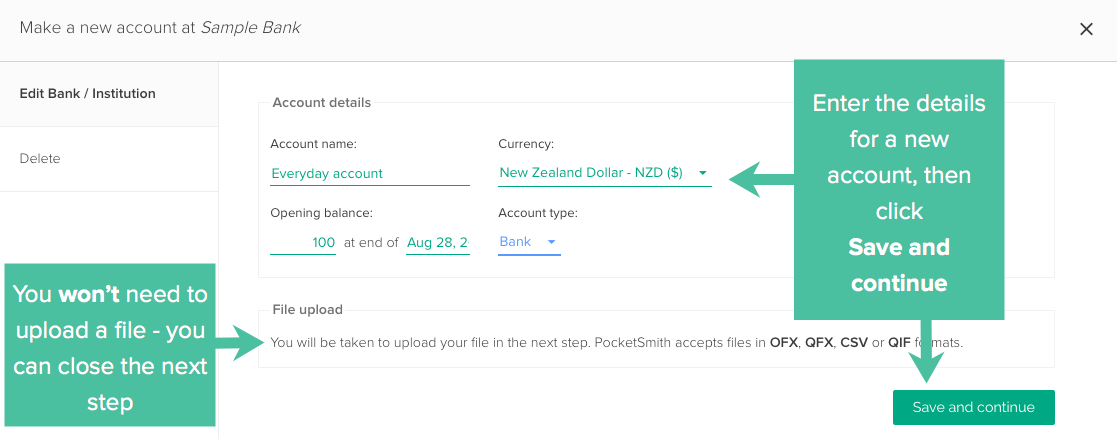
- Then, click Save and continue
-
Your account is now created! Because you won't be adding bank files, click X on the top of the form to close.
Step 2: Add accounts to your account group
Once you've created your group container, you can group accounts either via the Organize Accounts & Scenarios page or the Account Summary. We've detailed the steps for each below.
Grouping accounts via the Organize Accounts & Scenarios page
- Head to Organize Accounts & Scenarios (Manage > Organize Accounts & Scenarios)
- Navigate to an account you would like to add to the account group
-
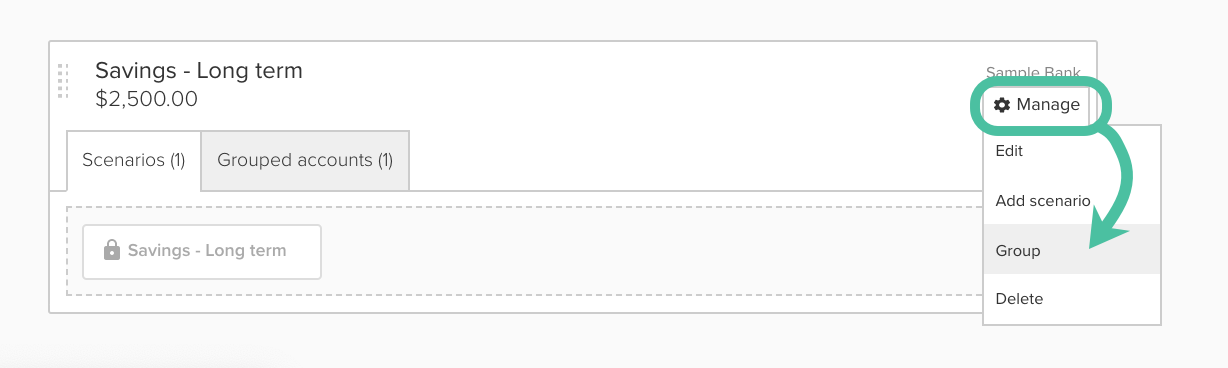
Hover over Manage to open the drop-down menu and select Group
-
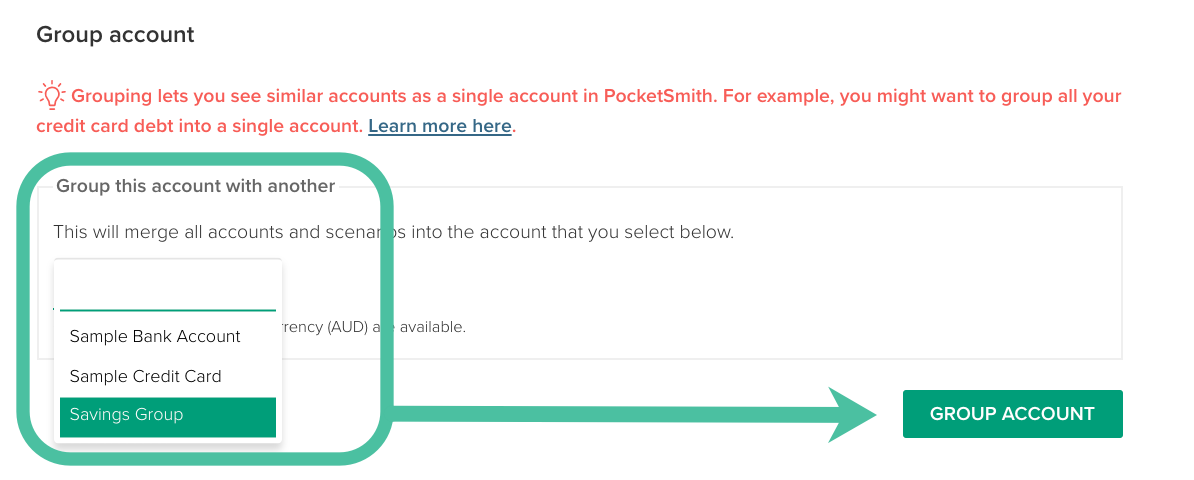
Next, choose the offline account you created as the group container from the drop-down menu.
Then, click Group account
- Repeat the above steps to add any other accounts to this group
-
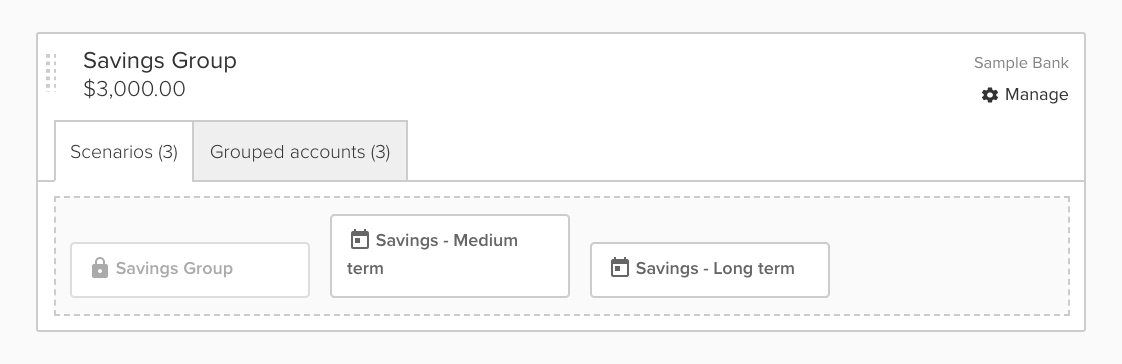
Your new grouped account will appear together on the Organise Accounts & Scenarios page, and you'll be able to see the accounts within the group
Group accounts together via the Account Summary
You can also group accounts together from the Account Summary. However, if you want to ungroup them, you will need to do this from the Organize Accounts and Scenarios page.
- Head to the Account Summary
- Navigate to the account you would like to add to the group
-
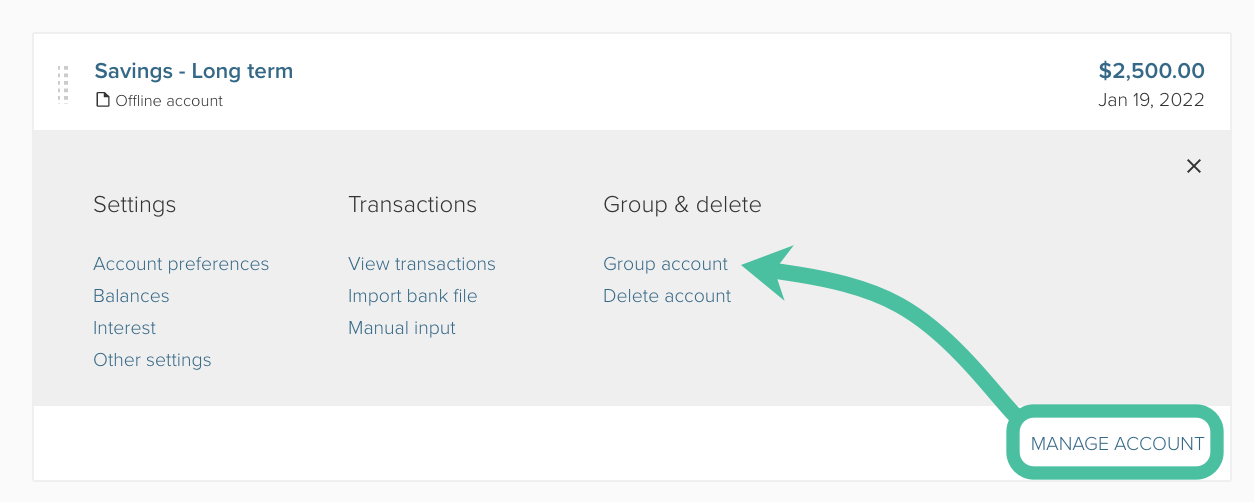
Click MANAGE ACCOUNT and select Group account
-
PocketSmith will ask you which account you would like to group the account with - select the offline account you created as the group container.
-
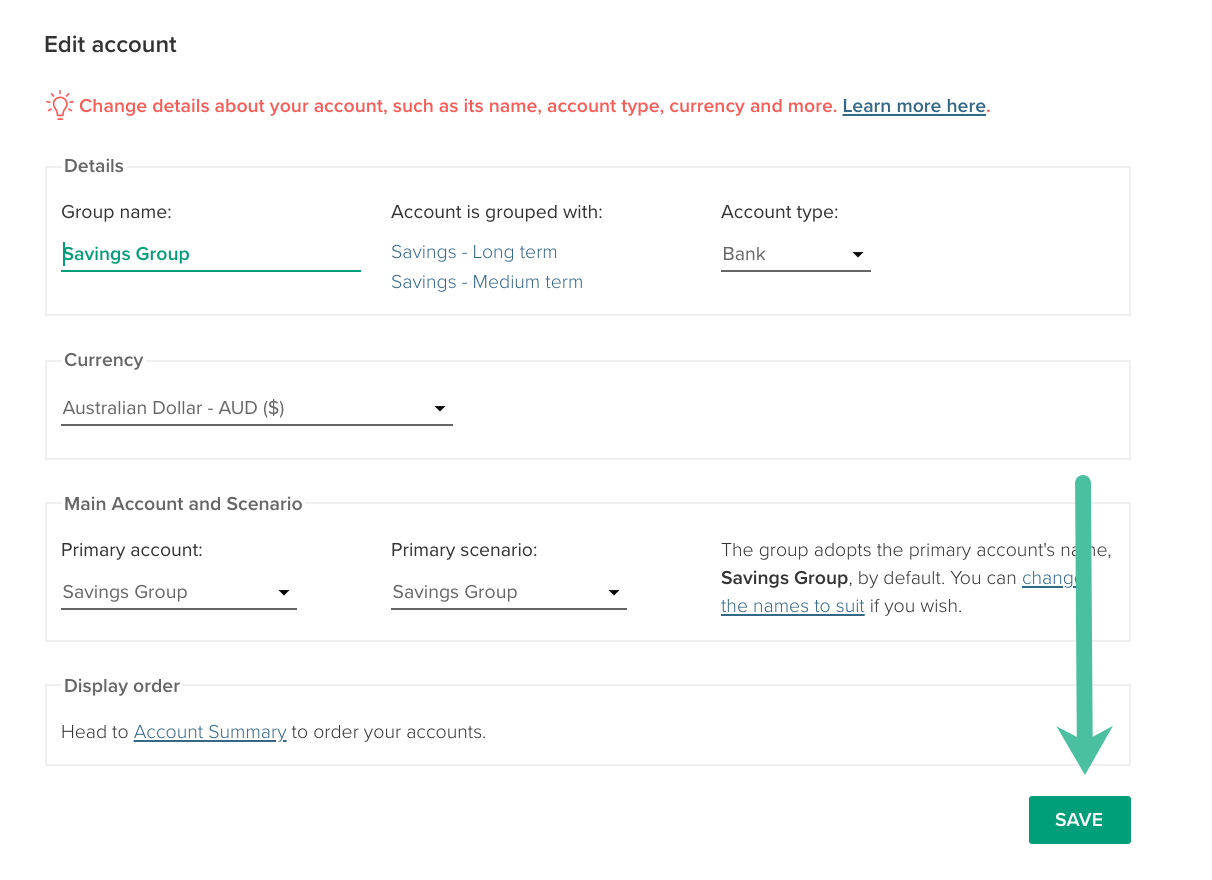
In the Edit account modal that appears, click SAVE
- Repeat for any additional accounts you would like to add to the group
-
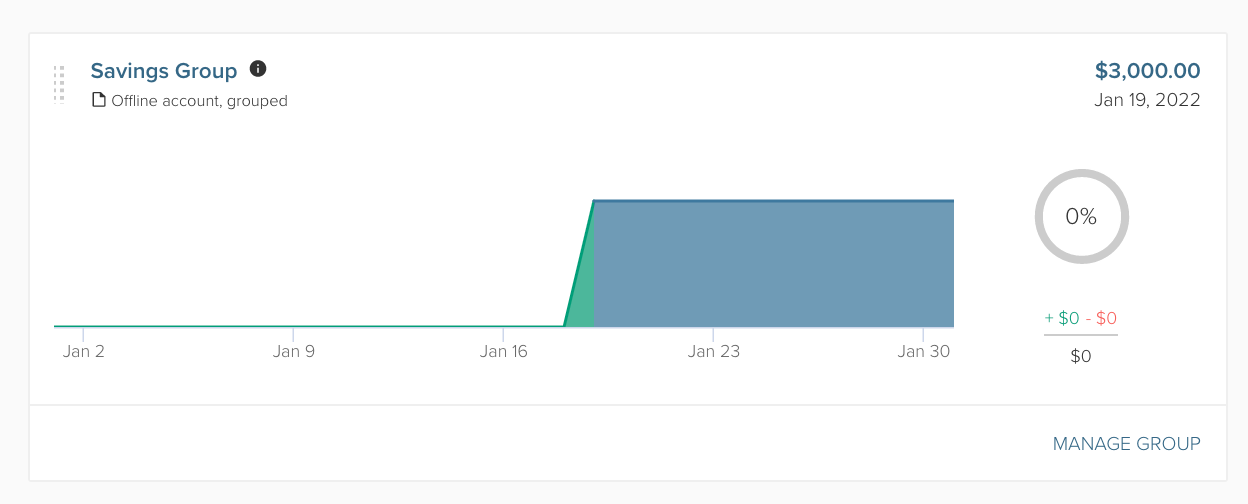
Your account group will now appear on the Account Summary
Editing the details of grouped accounts
To edit the overall group:
- Head to the Account Summary
-
Navigate to the Account group and click MANAGE GROUP, then select Edit group

- Adjust the group as desired, then click SAVE
Editing the details of an individual account within a group
You can edit some of the details of an individual account within an account group from the Account summary, including:
- Account name
- Account type
- Balance
- Head to the Account summary page, and ensure that the option to display All Banks is selected
-
Navigate to the account group and click MANAGE GROUP. Then, select the individual account, whose details you would like to edit, under 'Accounts in this group'

-
Choose Account preferences to update the Account name or account type.
Choose Balances to update the individual balance for a grouped account.

How to ungroup accounts
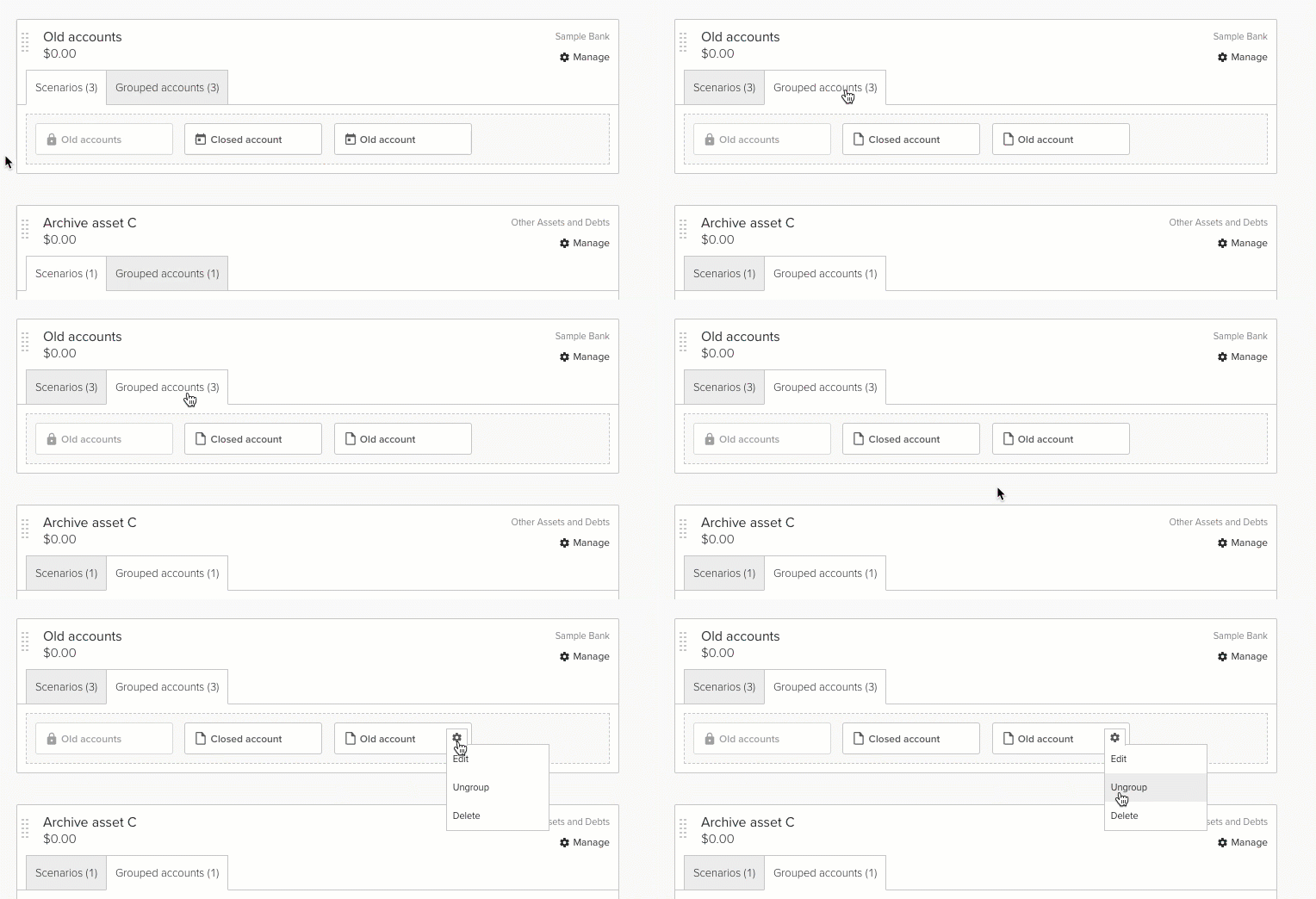
You can ungroup an account from a grouped account by following these steps:
- Head to Organize Accounts & Scenarios (Manage > Organize Accounts & Scenarios)
- Navigate to the grouped account you wish to ungroup
- Select the Grouped Accounts tab
- Hover over the account you wish to ungroup and click the settings cog that appears there
-
Click Ungroup